Property Sales → Setup → /property-sales/setup · needs Manage Available
Everything a sale needs is set up once, per development. A representative can only hold a unit that is released and priced in an active development.
1. Create the development
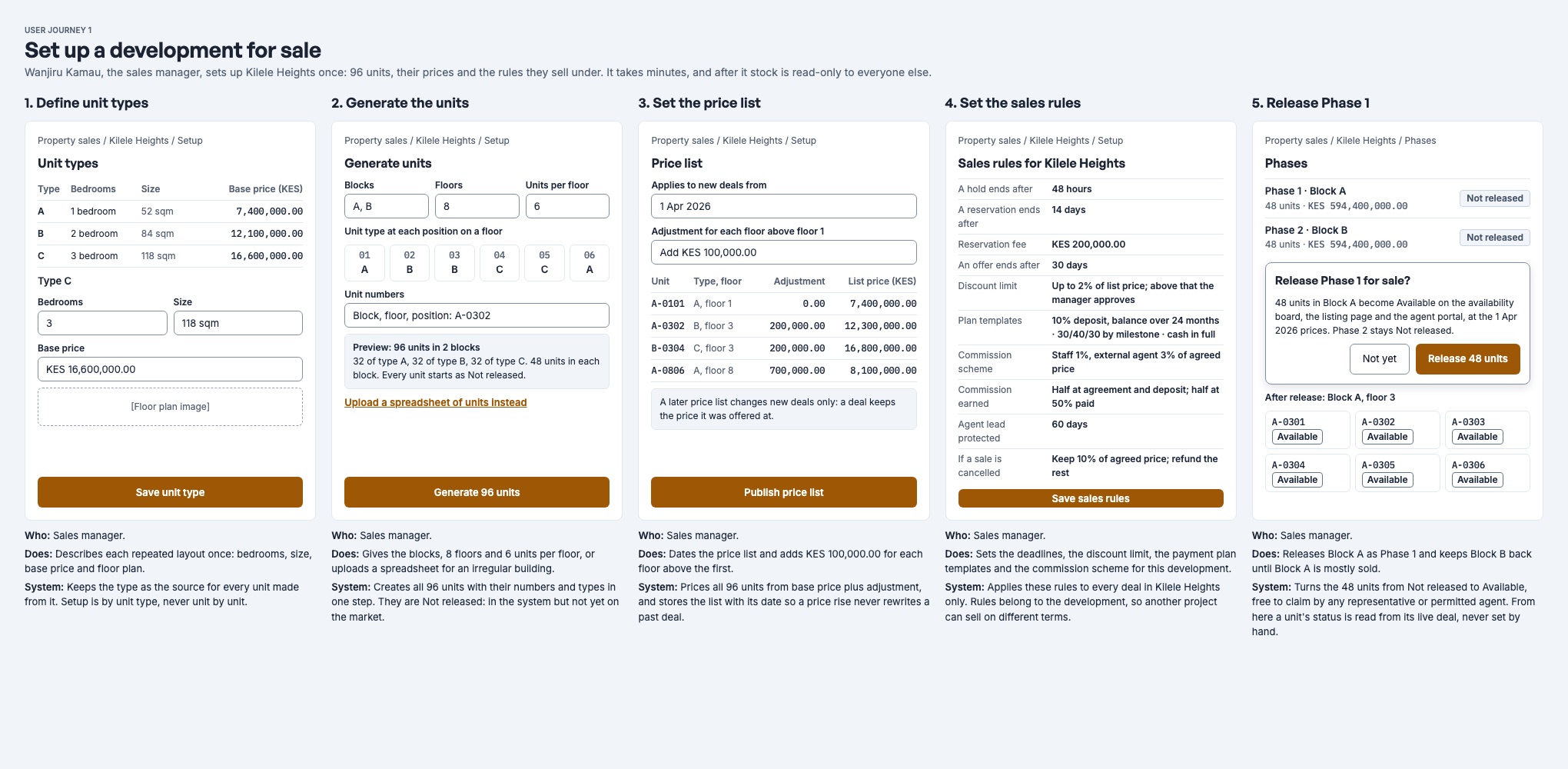
A development is created on a property that is already in your account. Add a development asks for the property, a name and the sales rules below. You can change the rules later with Edit sales rules on the development's Setup page.
A development is Active, Paused or Closed:
| Status | Can units be held? | Can it change? |
|---|---|---|
| Active | Yes | Pause or close |
| Paused | No | Reactivate or close |
| Closed | No | No: closing is final |
2. Set the sales rules
| Rule | Default | Range | What it does |
|---|---|---|---|
| Hold length | 48 hours | 1 hour – 1 year | How long a hold lasts before it lapses. |
| Reservation length | 14 days | 1 – 365 days | How long a reservation lasts before it lapses, unless it is paid on or an approval is waiting. |
| Offer length | 30 days | 1 – 365 days | How long an offer stays open. This is the "open until" date on the offer letter. |
| Maximum discount | None | A percentage | The largest discount a representative may give. Above it, a manager must approve. |
| Lead protection | 60 days | 0 – 3,650 days | How long an agent keeps the credit for a client they registered. |
| Untouched enquiry time | 24 hours | 1 hour – 1 year | When a new enquiry's first contact falls due, and when an enquiry with no activity is flagged as untouched. |
The reservation fee is not a development rule. The representative types it on each reservation, and it counts towards the price.
3. Add phases and layouts
- Phases group units that are built and released together, such as Phase 1 and Phase 2. Releasing a phase releases all of its units at once.
- Layouts (unit types) describe a kind of home, such as a two-bedroom of 86 m². A layout can carry a price, which any of its units without its own price list entry falls back to.
4. Add units
Units can be added one by one, or many at a time:
- Generate builds units from a block, floor and unit pattern. The default numbering is
{block}-{floor:2}{unit:2}, so block A, floor 3, unit 4 is A-0304. You see a preview first, and at most 1,000 units are made per batch. A clash with a unit in another block, an existing unit or a duplicate is shown before anything is saved. - Import takes a spreadsheet of units, again with a preview first.
5. Release units for sale
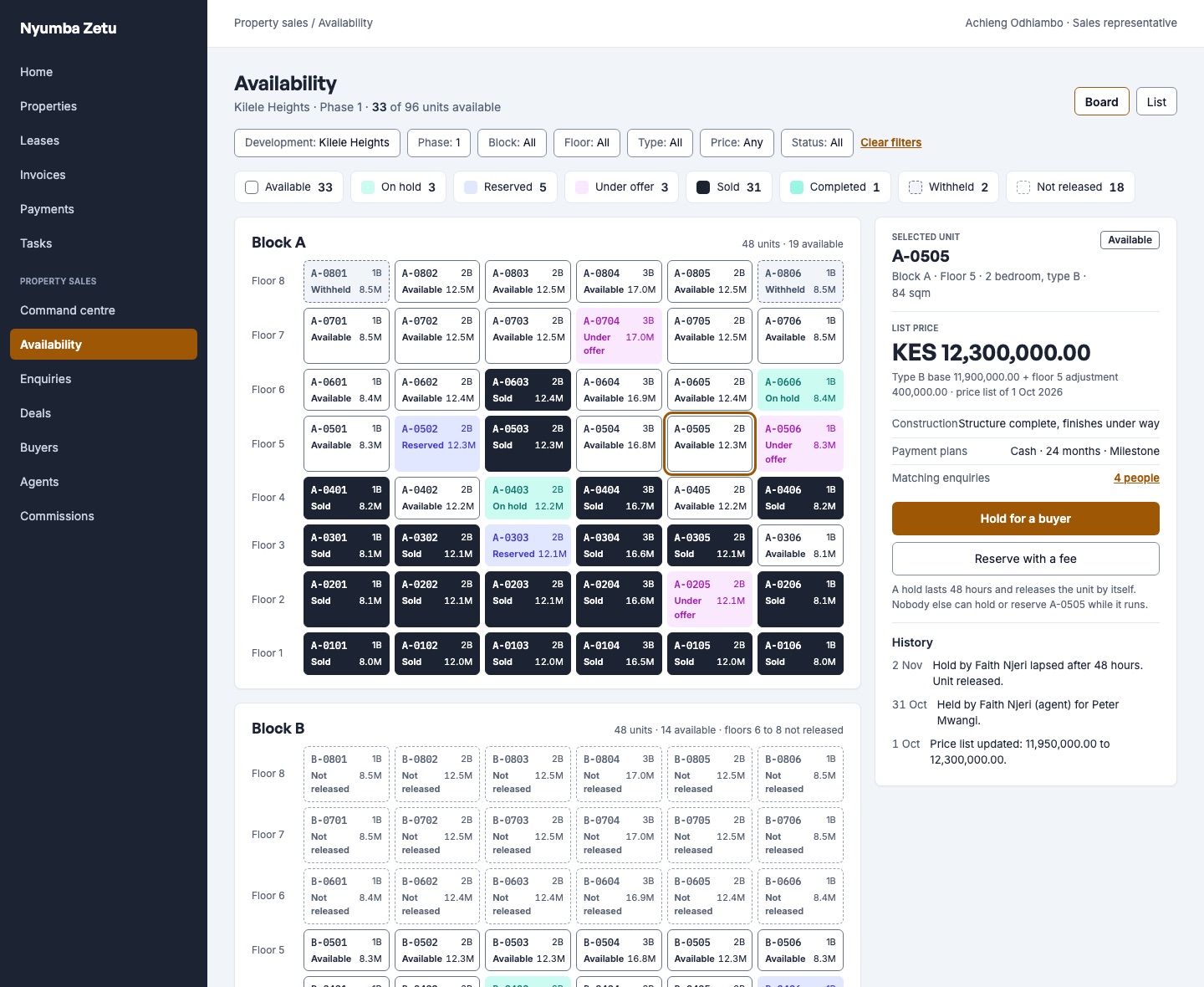
A new unit is Not released. Releasing it makes it Available on the board. A released unit can be withheld again, for example to keep it back for the developer, and released later.
| Unit status | Shown as | Set by |
|---|---|---|
| Not released | Not on sale | New units |
| Available | Free to hold | Releasing |
| Withheld | Off sale for now | A manager |
| On hold, Reserved, Under offer, Sold, Completed | Taken | The unit's live deal |
The last row is never typed: a unit's status is read from its live deal. A unit can have only one live deal at a time. If two people try to hold the same unit at once, the second is told who holds it.
6. Publish a price list
A price list names a price for each unit. Fill it from the layouts' prices, adjust where needed and Publish. When a unit is held or reserved, its price is taken from the newest published price list that names it, otherwise from its layout. A unit with no price cannot be held.
A published price list does not change deals that already exist: each deal keeps the price it was made at.
7. Listing photos and the public page
Setup holds the development's listing photos and its Public listing. Give the page a headline, choose how prices show and what the page lists, then Publish (or Save as draft). Once it is published, Setup shows the public address to copy or open. Pause the page takes it down without losing anything. Photos are optional. See Buyer and agent portals.
Tracked links for campaigns and agents are Built, opening soon: they work on the listing page and the website form, but cannot yet be made from the staff screens.
8. Bring in enquiries from outside
Two more Setup sections connect the development to where buyers find you:
- WhatsApp, SMS and email leads: make the development's code and copy its WhatsApp link, text and lead email address.
- Website enquiry form: make a key for a form on your own website and copy the form.
Both are explained in Enquiries and lead assignment.
Next
Once units are released and priced, they appear on the Availability board and enquiries can be matched to them. Continue with Enquiries and lead assignment.